Wits & Wagers
A downloadable PowerPoint for Windows
Wits & Wagers is a fast-paced live trivia betting game where players don’t need to know the correct answer — they just need to make the best guess and wager strategically.
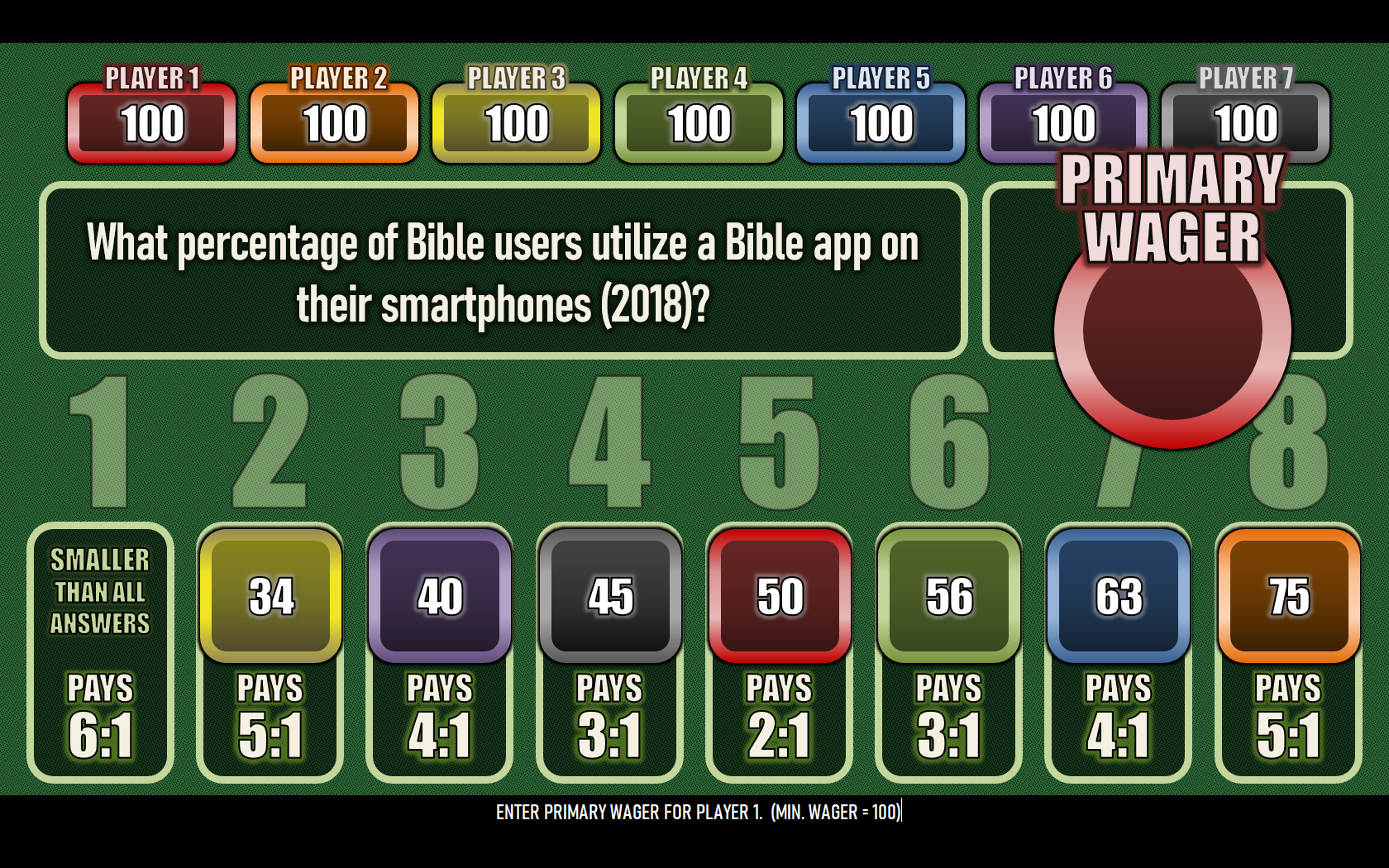
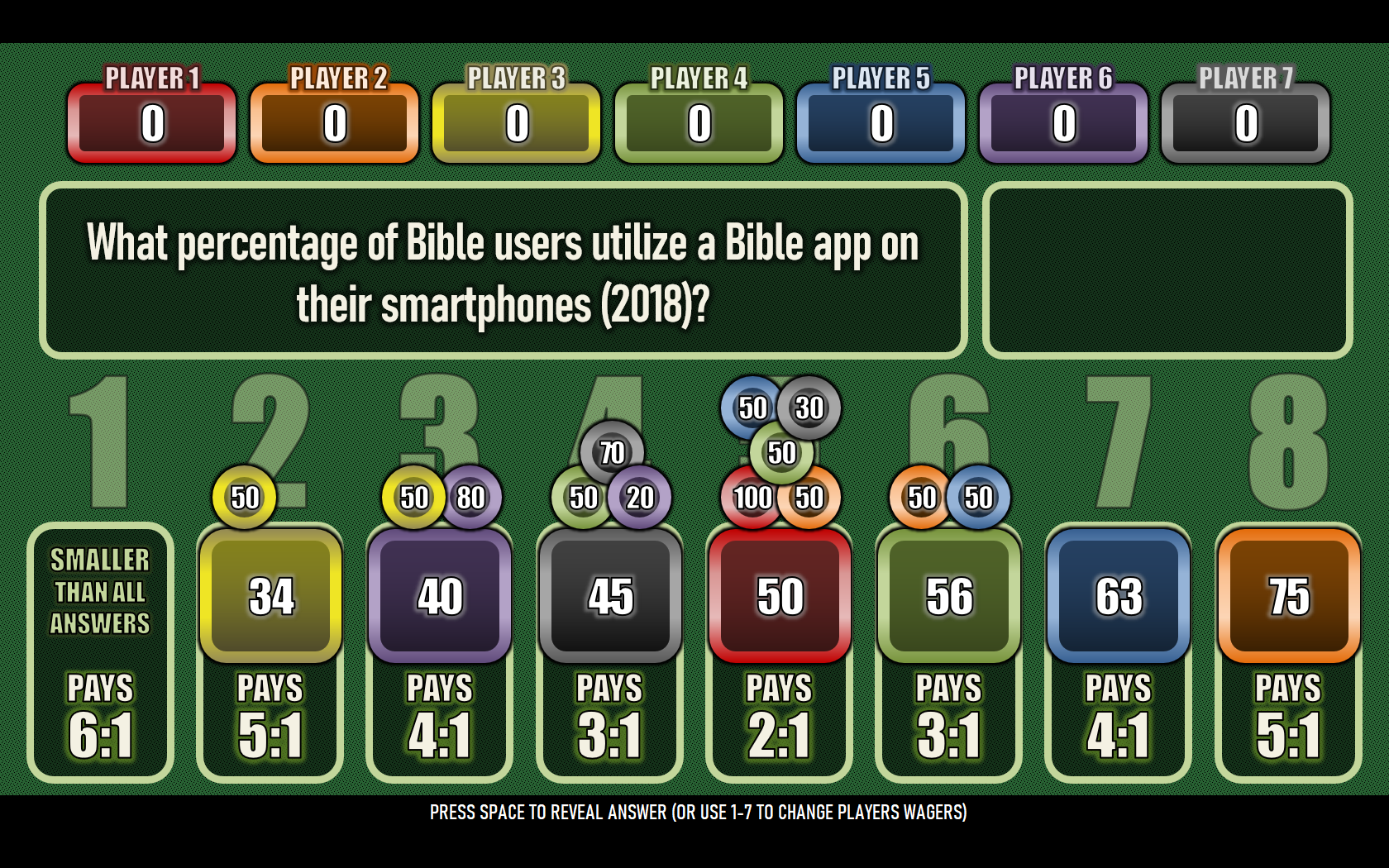
Each round begins with a numerical trivia question. Players secretly submit their answers, which are then automatically sorted from lowest to highest onto the game board. Once all answers are revealed, players place wagers on which answer they believe is closest to the correct answer without going over.
The farther an answer is from the center, the bigger the payout odds become — creating a mix of trivia knowledge, risk-taking, bluffing, and strategy. Players can split wagers, bet aggressively, or play safely as scores rise throughout the game.
Built entirely in advanced PowerPoint VBA automation, Wits & Wagers recreates the feel of a live game show with animated answer cards, dynamic wager placement, customizable rules, secret wagers, scoring systems, audio integration, and projector-friendly gameplay.
Features
- Fully interactive trivia wagering gameplay
- Supports 3–7 players or teams
- Secret numerical answer submissions
- Automatic answer sorting system
- Live wagering board with payout odds
- Primary and secondary wager system
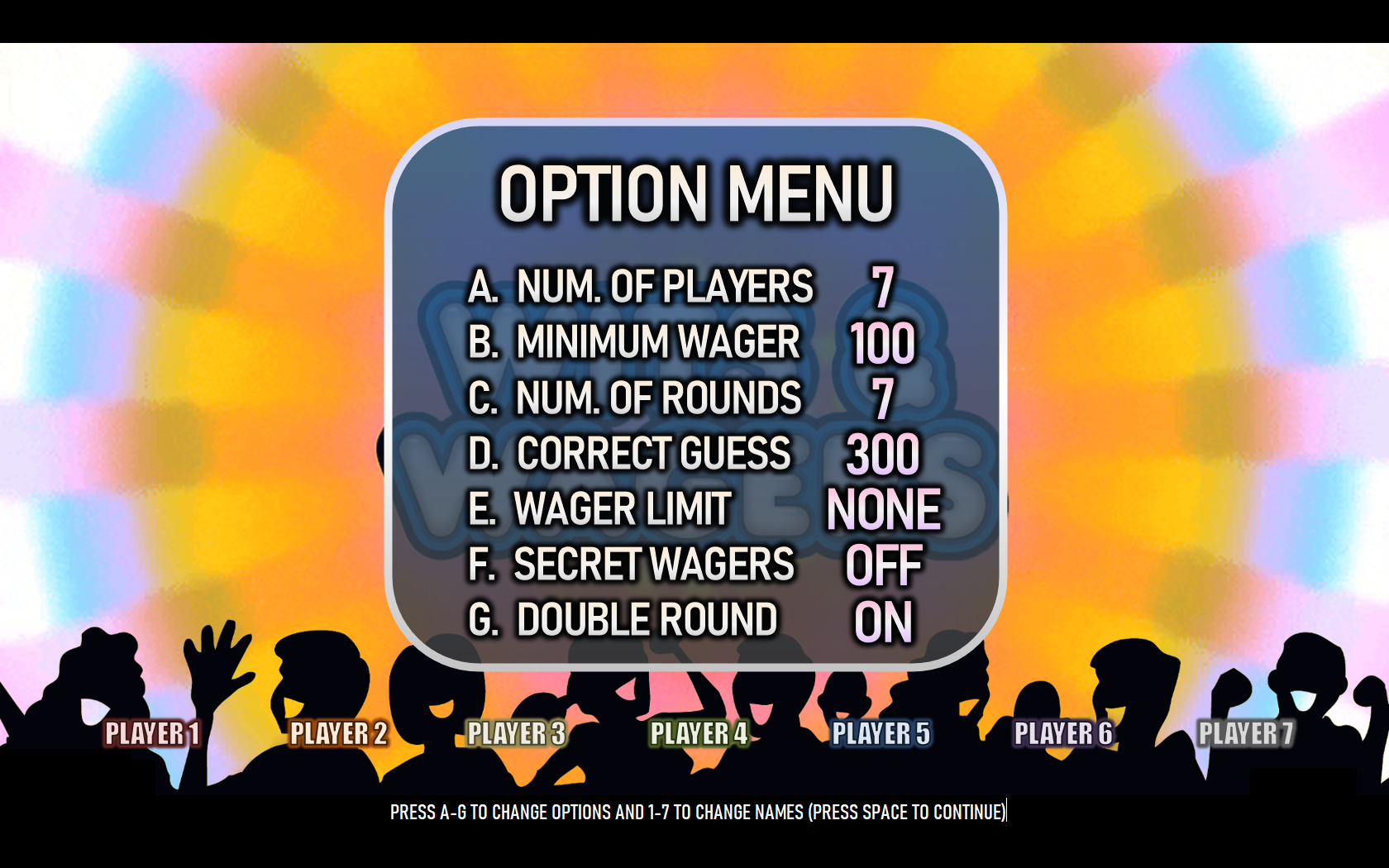
- Adjustable wager limits
- Optional secret wagers mode
- Optional double final round
- Adjustable number of rounds
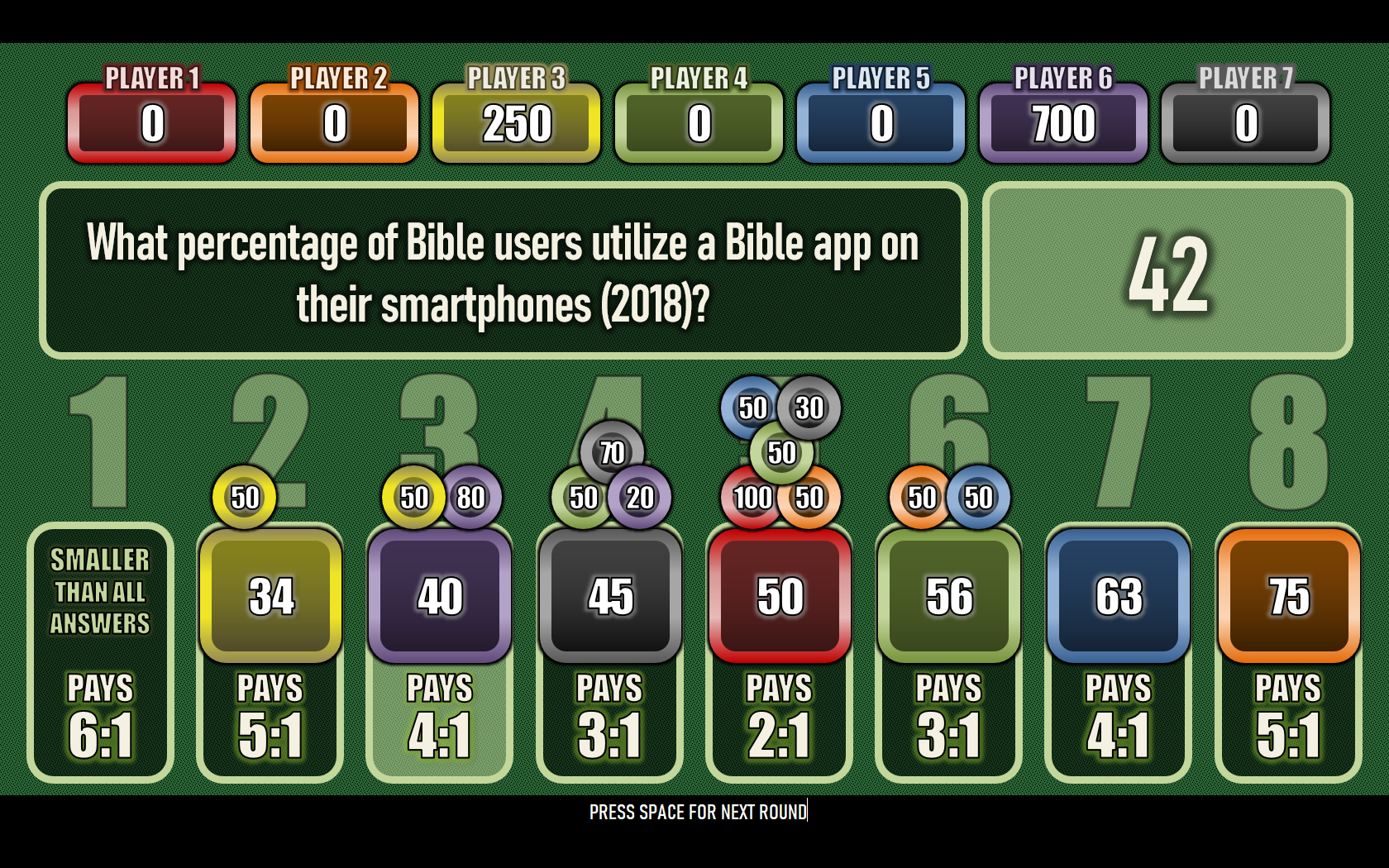
- Correct-answer bonus scoring
- Automatic score tracking
- Customizable player names
- Randomized question selection
- Dynamic audio/music integration
- Animated reveal system
- Live projector/game-show presentation
- Built entirely with PowerPoint VBA automation
Gameplay Includes
- Numerical trivia questions
- Hidden player responses
- Strategic wagering
- Risk/reward betting odds
- Closest-without-going-over mechanics
- Final double-payout round
- Live answer reveals
- Winner celebration sequence
Perfect For
- Church socials
- Youth groups
- Camps & retreats
- Family game nights
- Classroom competitions
- Fellowship events
- Team-building activities
- Live hosted projector gameplay
Download
Install instructions
Download & Install Instructions
System Requirements
- PC ONLY: These games are engineered exclusively for Windows PC.
- NOT SUPPORTED: These files will NOT function on Mac, Chromebook, iPad, or Mobile devices.
- THE ENGINE: A full desktop installation of Microsoft PowerPoint (Office 2019, 2021, or Office 365) is required.
- NO EMULATORS: These games utilize advanced VBA logic that is NOT supported by Google Slides, OpenOffice, or PowerPoint Mobile/Web.
Installation Guide
1. Extract the ZIP File
Do NOT run the game directly from the compressed ZIP folder.
The VBA engine requires access to external files such as sounds, questions, graphics, and fonts. Running from a ZIP folder will prevent the game from functioning correctly.
Steps:
- Right-click the downloaded ZIP file
- Select Extract All...
- Choose a destination folder
- Click Extract
2. Move the Folder to a Local Drive
Run your games from a LOCAL folder only.
Cloud-sync services like OneDrive or SharePoint may alter file paths or temporarily lock files while syncing, which can break the VBA engine.
Recommended Locations:
- Desktop
- C:\ Drive
Avoid:
- OneDrive folders
- SharePoint folders
- Network drives
- External cloud storage
If you see a blue cloud icon next to the folder, move it to a local folder on your PC.
3. Unblock the PowerPoint File
Windows may block downloaded PowerPoint files by default.
Steps:
- Right-click the PowerPoint game file
- Select Properties
- Check the box labeled Unblock
- Click Apply → OK
This grants permission for the VBA engine to run properly.
4. Enable PowerPoint Macros & ActiveX Controls
These games require VBA macros and ActiveX controls for scoreboards, buzzers, timers, animations, and gameplay logic.
Inside PowerPoint:
Navigate To:
File → Options → Trust Center → Trust Center Settings
Macro Settings
Enable:
- Enable All Macros
ActiveX Settings
Enable:
- Enable all controls without restrictions
This is a one-time setup for your PC.
5. Install Included Fonts (If Provided)
Several games include a folder named:
Install_This_Font.zip
Installing the included fonts ensures the authentic TV Game Show appearance.
Steps:
- Open the font ZIP file
- Extract the contents
- Right-click each
.ttfor.otffile - Select Install
IMPORTANT: Install the fonts BEFORE opening PowerPoint, or the fonts may not display correctly.
REQUIRED: Live Presentation Setup
These games are designed specifically for LIVE game show environments using a dual-screen setup.
A second display is NOT optional for normal gameplay.
Required Equipment
- Windows PC
- TV, projector, or LED display
- Extended display configuration
- Microsoft PowerPoint desktop application
Configure Dual Displays
Steps:
- Connect your PC to the TV or projector
- Press Windows Key + P
- Select EXTEND
Enable Presenter View
Inside PowerPoint:
- Go to the Slide Show tab
- Check Use Presenter View
Recommended Display Resolution
For the smoothest gameplay experience:
- Keep your display resolution at 1920x1080 or LOWER
- Extremely high resolutions (1440p, 4K, ultrawide, etc.) may introduce lag or reduce VBA responsiveness
These games rely on real-time VBA rendering and animation logic. Higher resolutions increase rendering load and may impact performance during live gameplay.
Why This Matters
These games operate using a Single-Slide VBA Architecture.
That means:
- The audience sees ONLY the polished game board
- The host controls gameplay from Presenter View
- Keyboard and buzzer inputs are handled through the host screen
- The VBA engine dynamically spawns questions, animations, timers, and scoreboards in real time
Without a proper dual-monitor setup, many gameplay features and controls will not function correctly.
Starting the Game
Launch Instructions
- Open the PowerPoint file
- Press F5 or click Slide Show
- Move your cursor to the presentation screen
- Click the black input bar labeled:
"CLICK HERE TO BEGIN"
IMPORTANT: Do NOT click anywhere else after engaging the input bar. Clicking the background may disconnect keyboard or buzzer inputs from the VBA engine.
Once connected, the game is controlled entirely through keyboard or buzzer inputs.
Display Scaling Fix
If buttons or click zones appear misaligned, Windows text scaling is interfering with VBA coordinate precision.
Recommended Fix:
- Exit the presentation
- Right-click your Desktop
- Select Display Settings
- Locate Scale and Layout
- Set scaling to:
125%
- Relaunch the game
This is the recommended scaling setting for the vast majority of systems.
Keyboard & Buzzer Controls
Many games use the Numeric Keypad for player inputs.
Default Player Mapping
- NumPad 1 → Player 1
- NumPad 2 → Player 2
- NumPad 3 → Player 3
- NumPad 4 → Player 4
- NumPad 5 → Player 5
IMPORTANT: Ensure Num Lock is turned ON before starting the game.
Controller Test
During gameplay, press:
` (Back Quote Key)
This opens the controller diagnostic tool to verify player connections.
Optional USB Buzzer Setup
Transform your setup into a professional live game show with physical buzzers.
Recommended Search:
Search:
- "Custom USB Buzzer" on AliExpress
Setup:
- Program each buzzer to NumPad 1–5
- The VBA engine will recognize the buzzers exactly like keyboard inputs
Customization & Editing
Most games support instant customization using local text files.
Common Features:
- Editable
questions.txtfiles - Dynamic scoreboards
- Real-time animations
- Fully unlocked VBA source code
To explore or modify the source code:
- Open the game in PowerPoint
- Press ALT + F11
Every game is fully unlocked and customizable for your ministry or event.
Need Help?
Questions, bugs, feedback, or ministry stories?
Contact Pastor Robin directly:
More games and future releases: linktr.ee/pastorrobin

Leave a comment
Log in with itch.io to leave a comment.